

How to Connect ChatGPT to Your Business Systems with MCP
To connect ChatGPT to your business systems, you add an MCP server as a custom connector in ChatGPT, sign in, and choose which tools ChatGPT may use. Once connected, ChatGPT can read live data and run real actions in your CRM, ERP and document tools instead of working only with text you paste into the chat.
Why connect ChatGPT to business systems?
Most teams already use ChatGPT to draft emails and summarize documents. The limitation is that it cannot see your systems. Connecting it through the Model Context Protocol (MCP) lets it answer with live information and complete tasks: look up an account, check an order, generate a quote or start a workflow.
What you need
- A ChatGPT plan that supports adding custom MCP servers.
- An MCP server connected to your business systems, such as the Noca MCP Server for ChatGPT.
- A clear decision about what ChatGPT may read, change, build or administer.
Step-by-step: connect ChatGPT to Noca
- In Noca, open Security & Credentials, then MCP Server, and turn it on.
- Choose the permission groups ChatGPT may use: Builder, Data read, Data write and Admin. Turn on Data write and Admin only if ChatGPT should change or publish things.
- Copy the private MCP Server URL and keep it confidential.
- In ChatGPT, add a custom MCP server, enter a name, paste the server URL and choose OAuth.
- Confirm the connection and sign in to Noca when prompted.
- Start a new chat and ask a question about your workspace, such as “Which flows failed today?”
What ChatGPT can do once connected
- Run business processes: trigger published Noca flows that create records, generate documents or request signatures.
- Read records: query Salesforce, Priority, SAP Business One, Dynamics 365 or SQL Server data with a read-only tool.
- Build: create or update Noca apps and flows from a description, if Builder permissions are on.
- Monitor: list recent flow runs and open a run step by step to see what went wrong.
Example prompts
- “Create a quote for Acme from the Salesforce opportunity and send it for signature.”
- “Which NetSuite invoices are overdue by more than 30 days?”
- “Run the supplier onboarding flow for Northwind.”
- “Build a simple app where field technicians submit service reports with a signature.”
Security best practices
Treat the MCP server URL like a password. Grant the minimum permission groups needed, keep publish and delete tools on approval, and review flow runs regularly. In Noca, destructive actions require confirmation and every run appears in integration logs.
Ready to try it? Learn more about the Noca MCP Server and browse the systems you can connect.
Frequently Asked Questions

Can ChatGPT connect to my CRM?
Yes. By adding an MCP server that is connected to your CRM, ChatGPT can read CRM data and, with the right permissions, run processes that update it.
Is it safe to connect ChatGPT to business systems?
It is safe when access is controlled. Use an MCP server with permission groups, require approval for sensitive actions and keep the server URL private.
Do I need to write code to connect ChatGPT?
No. You enable the MCP server, copy its URL and add it to ChatGPT as a custom MCP server. No code is required.
Can ChatGPT build automations?
With Builder permissions on the Noca MCP Server, ChatGPT can create and update Noca apps and flows from a plain-language description.
How do I connect ChatGPT to business systems?
To connect ChatGPT to your business systems, you add an MCP server as a custom connector in ChatGPT, sign in, and choose which tools ChatGPT may use.
What can I do once I connect ChatGPT to business systems?
Key points include: A ChatGPT plan that supports adding custom MCP servers; An MCP server connected to your business systems, such as the Noca MCP Server; A clear decision about what ChatGPT may read, change, build or administer.
What are the steps to connect ChatGPT to business systems?
1) In Noca, open Security & Credentials, then MCP Server, and turn it on 2) Choose the permission groups ChatGPT may use: Builder, Data read, Data write and Admin. Turn on Data write and Admin only if ChatGPT should change or publish things 3) Copy the private MCP Server URL and keep it confidential 4) In ChatGPT, add a custom MCP server, enter a name, paste the server URL and choose OAuth 5) Confirm the connection and sign in to Noca when prompted.
What should I consider before I connect ChatGPT to business systems?
Consider the following: Run business processes: trigger published Noca flows that create records, generate documents or request signatures; Read records: query Salesforce, Priority, SAP Business One, Dynamics 365 or SQL Server data with a read-only tool; Build: create or update Noca apps and flows from a description, if Builder permissions are on; Monitor: list recent flow runs and open a run step by step to see what went wrong.
How does Noca help me connect ChatGPT to business systems?
Treat the MCP server URL like a password. Grant the minimum permission groups needed, keep publish and delete tools on approval, and review flow runs regularly. In Noca, destructive actions require confirmation and every run appears in integration logs.
Can I connect ChatGPT to business systems from ChatGPT, Claude or Grok?
Yes. With the Noca MCP Server, ChatGPT, Claude, Grok and other MCP-compatible assistants can run your published Noca flows and use Noca tools, within the permission groups and per-tool approvals you set.
Do I need developers to connect ChatGPT to business systems?
Is it secure to connect ChatGPT to business systems?
Use least-privilege permissions, require approval for sensitive actions and keep a log of every run. Noca follows the TRAPS framework (Trusted, Responsible, Auditable, Private and Secure), records every flow run in integration logs and lets you control data storage for specific flows.
How long does it take to connect ChatGPT to business systems?
A first working version can often be built from a prompt and tested quickly. The total time depends on how many systems, approvals and documents are involved and how much testing your team requires before publishing.
How do I measure the results of this approach?
Compare cycle time, manual steps, error rates and adoption before and after. Noca integration logs show how often each process runs, how long it takes and where it fails.
Does Noca have an MCP server?
Yes. The Noca MCP Server connects ChatGPT, Claude, Grok and other MCP-compatible assistants to your Noca workspace with 80 tools for apps, bots, flows, documents, connections and data.
Which permission groups does the Noca MCP Server use?
Tools are grouped into Builder, Data read, Data write and Admin. In your assistant, each tool can be set to always allow, needs approval or blocked, and destructive actions ask for confirmation.
Can AI assistants read CRM and ERP data through Noca?
Yes. The read-only query_records tool reads records from Salesforce, Priority, SAP Business One, Microsoft Dynamics 365 and Microsoft SQL Server without building a flow.
Can AI assistants change data in my systems through Noca?
Yes, by running published Noca flows with the run_flow tool, which requires the Data write group. The flow keeps your validation and mapping, and you can require approval for each run.
Is Noca also an MCP client?
What is Noca?
Noca is an AI-powered business process automation platform that combines forms, document generation, e-signatures, workflow automation, AI agents and 60+ integrations, with an MCP server for ChatGPT, Claude and Grok.
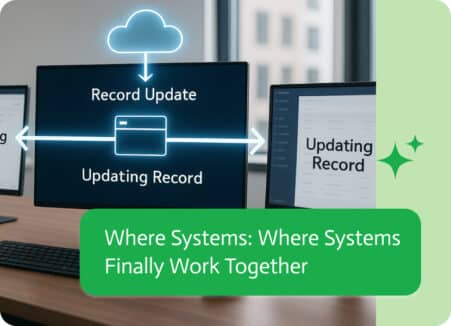
Nobody wakes up thinking, “I hope I get to move data between five platforms today,” let’s face it. Nevertheless, that is the hidden reality of…
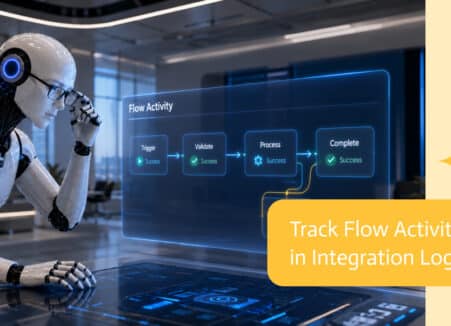
Build a real business form from ChatGPT: connect an MCP server, describe the form, preview it, connect it to your systems and publish it with approval.

So here’s what systems integration is in a nutshell. Think of it as magical duct tape, a translator, and diplomat all rolled into one tool….
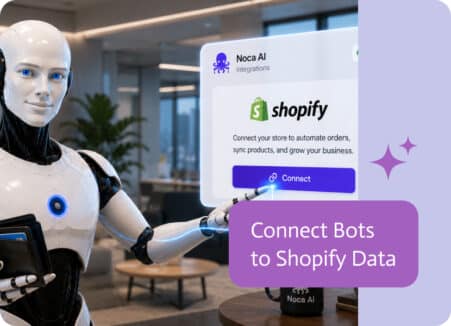
Bots are more useful when they can access accurate, up-to-date business information. Connecting a bot to Shopify allows it to work with store data such as…
In this guide we will learn how to connect Noca AI to your monday account. 1. Log into Noca. 2. Under the Flows menu locate…