
Salesforce Document Generation: The Complete Guide
Salesforce document generation is the process of automatically creating documents, such as quotes, contracts, order forms and invoices, from Salesforce record data using templates. You can use Salesforce’s own capabilities where your edition includes them, standard quote templates, AppExchange apps such as Conga or S-Docs, or an external platform like Noca that also handles e-signature and updates other systems.
This guide covers your options, how templates work, a step-by-step setup and common limits to plan for.
Why generate documents from Salesforce?
Manually copying data from Salesforce into Word documents is slow and error prone. Generating documents directly from records gives you:
- Accuracy: names, prices and terms come straight from the record.
- Speed: documents in seconds instead of hours.
- Consistency: approved templates and branding every time.
- Tracking: documents linked to the right record, with status updates.
Your Salesforce document generation options
| Option | What it is | Best for | Considerations |
|---|---|---|---|
| Standard quote templates | Built-in quote PDF templates on Quotes | Simple quotes | Limited layout control |
| Salesforce document generation (OmniStudio and industry clouds) | Native Word-template generation in some products | Organizations with eligible licenses | Availability depends on edition |
| AppExchange apps | Conga Composer, S-Docs, Docusign Gen, Nintex DocGen, Docs Made Easy | Salesforce-centric document needs | Licensing and admin setup |
| External platforms | Noca, Formstack Documents and others | Processes that span Salesforce and other systems | Integration configuration |
Check with your Salesforce account team about which native capabilities your licenses include.
How Salesforce document templates work
Most tools use the same building blocks:
- Merge fields: placeholders such as {Account.Name} or {Opportunity.CloseDate}.
- Related lists: tables that repeat for child records, such as opportunity line items.
- Conditional sections: show or hide text based on field values, such as a clause for international customers.
- Formatting: dates, currency and number formats.
- Images: logos, signatures or product images.
Step-by-step: setting up Salesforce document generation
- Pick the document. Start with a high-volume document, such as a quote or order form.
- Collect the current version from legal or sales.
- List the data needed and confirm each field exists in Salesforce.
- Build the template in Word with merge fields and line-item tables.
- Choose the trigger: a button on the record, a Flow on stage change or an AI assistant request.
- Decide the output: PDF or DOCX, file naming and where it is stored.
- Add approvals for discounts or non-standard terms.
- Add e-signature and map status fields back to Salesforce.
- Test with real records, including edge cases like zero line items.
- Train users and monitor adoption.
Common limits and challenges
- Complex tables: grouping, subtotals and nested lists may need advanced template features.
- Governor limits and performance: large documents or batch generation can hit platform limits in native tools.
- Template maintenance: admins become bottlenecks if business users cannot edit templates.
- Data quality: documents expose missing or inconsistent fields.
- Storage: generated files can consume Salesforce file storage.
- Cross-system data: pricing or inventory may live in the ERP, not Salesforce.
Adding e-signature and automation
The biggest gains come from automating what happens after generation:
- Generate the contract from the opportunity.
- Route for approval if needed.
- Send for e-signature.
- When signed: attach the PDF, update fields, move the stage to Closed Won.
- Create the order in the ERP and notify finance in Slack or Teams.
How Noca helps
Noca generates documents from Salesforce data with your Word templates, including conditional sections and line-item tables, sends them for e-signature and updates Salesforce and other systems such as NetSuite, SAP or Priority. Reps can trigger documents from ChatGPT or Claude through the Noca MCP Server. See the Noca Salesforce integration.
Related guides
Frequently Asked Questions

Does Salesforce have document generation?
Salesforce offers standard quote templates and, in certain products and editions such as some industry clouds with OmniStudio, native document generation using Word templates. Availability depends on your licenses. Many organizations use AppExchange apps or external platforms for more flexibility.
How do I generate a PDF from Salesforce?
You can use standard quote templates for quote PDFs, native document generation if licensed, an AppExchange app or an external platform. Typically you create a template with merge fields, add a button or Flow to generate it and save the PDF to the record.
Can I use Word templates in Salesforce?
Yes. Many Salesforce document generation tools, including Salesforce’s native capability in eligible products and apps like Conga, S-Docs, Docusign Gen and Noca, use Microsoft Word templates with merge fields and conditional logic.
What is the best Salesforce document generation tool?
It depends on your needs. Conga Composer is mature and powerful, S-Docs is fully native, Docusign Gen suits Docusign users and Noca suits processes that extend beyond Salesforce. Compare template flexibility, e-signature, licensing and integrations.
How do I include opportunity products in a Salesforce document?
Use a template feature for related lists or repeating tables, mapping columns such as product name, quantity, unit price and total. Most tools support sorting and filtering, and some support grouping and subtotals for complex quotes.
Can Salesforce generate documents automatically?
Yes. Document generation can be triggered by Flows or record changes, such as an opportunity reaching a certain stage. The document can then be sent for e-signature automatically, with status written back to Salesforce once signed.
We are living in the era of information overload. With numerous reports, lengthy articles, meeting notes, and research papers, it can be overwhelming to keep…

It feels like new AI chatbots are popping up all the time, saying they can write books, do taxes, or just talk. There are so…
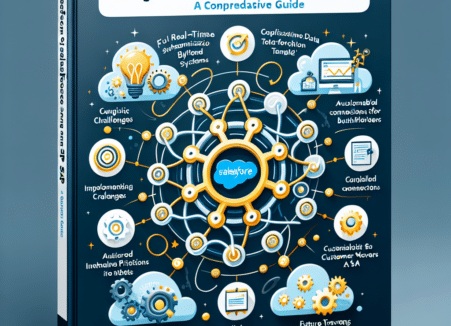
Unleashing the Power of Salesforce and SAP Integration: A Comprehensive Guide for Businesses In today’s fast-paced digital world, organizations are turning to integrated systems to…