

Connect Grok to Your Business Systems With the Noca MCP Server
Give Grok secure access to your Noca apps, flows, documents and data, and to Salesforce, NetSuite, SAP and 60+ connected systems. Ask in plain language and Grok runs real business processes through Noca, with the permissions and approvals you set.

Turn Grok Into a Place Where Work Gets Done
Grok is great at answering questions. With the Noca MCP Server it can also act: generate a contract, send it for signature, create a record in your CRM or ERP, or build a new app or workflow.
Noca runs the real process behind the scenes, so every action follows your business rules, uses your existing connections and is logged.
What Grok Can Do
With Noca
Run Business Processes
Run your published Noca flows with run_flow: generate documents, request e-signatures, create records and trigger automations from a Grok chat.
Read Live Business Data
Read records from Salesforce, Priority, SAP Business One, Dynamics 365 and Microsoft SQL Server with query_records, without exporting anything.
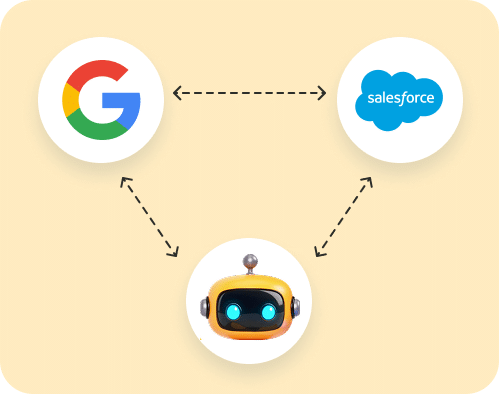
Build Apps, Flows and Bots
With Builder permissions, Grok can create and update Noca apps, forms, workflows and chatbots from a prompt.
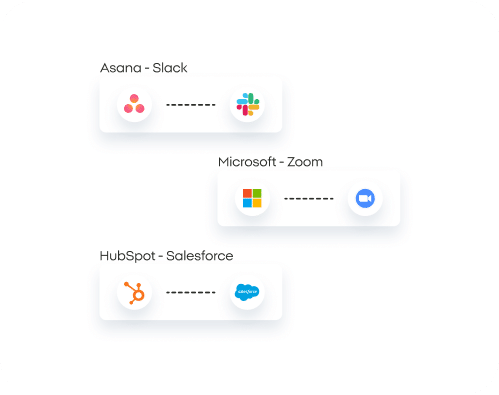
Generate Documents
Create quotes, contracts and PDFs from your Word and PDF templates and send them for signature.
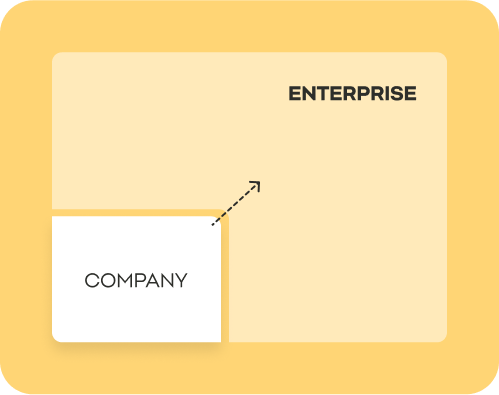
Build Agents on Grok
Developers using the xAI API can give Grok-based agents access to Noca flows, documents and data through the same MCP server.
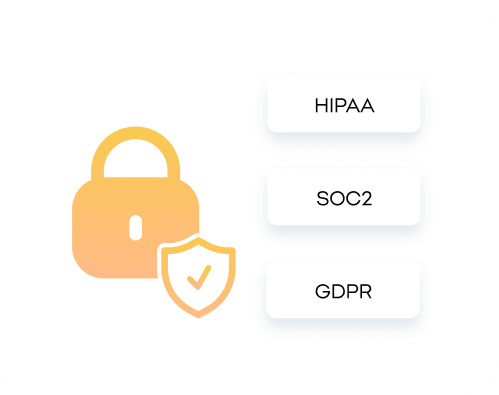
You Stay in Control
Choose the permission groups, set each tool to Always allow, Needs approval or Blocked, and keep publish and delete actions on approval.
How to Connect Grok to Noca
In Noca, turn on the MCP Server, choose the tool groups and copy your private server URL. Add that URL wherever your Grok setup supports remote MCP servers, such as remote MCP tools in the xAI API, and sign in to Noca. Grok can then run your flows and read your business data with the permissions you set.
More from the Noca MCP Server: MCP Server Security · Zendesk MCP Server · Dynamics 365 MCP Server · Priority MCP Server · monday.com MCP Server · HubSpot MCP Server · SAP Business One MCP Server · NetSuite MCP Server · Salesforce MCP Server · Build AI Chatbots With MCP · Workflow Automation With MCP · Generate Documents With AI and MCP · Build Apps and Forms With MCP · Claude MCP Server for Business · ChatGPT MCP Server for Business
Use Grok for
Every Team
Teams run real business processes from Grok through the Noca MCP Server.
Close deals from the chat.
“Create a quote for Acme from the Salesforce opportunity and send it to John for signature.” Noca generates the document, requests the signature and updates the opportunity.

ERP tasks in plain language.
Check an order in SAP Business One, look up an invoice in Priority or run the supplier onboarding flow for NetSuite, with the permissions you set.
Onboarding in one conversation.
“Send Dana the offer letter and onboarding form.” Noca generates the letter, collects the signature and starts the onboarding flow.
Answers without switching tools.
Look up a customer across Salesforce and Zendesk and send a follow-up form or document from the same chat.
Build Noca from Grok.
Create apps, flows and chatbots, review connections and test runs conversationally, then publish when you approve.
Connect Grok to Your Business in Minutes

Frequently Asked Questions

What is the Noca MCP Server for Grok?
It is a private MCP server for your Noca workspace. Once added to Grok, it lets Grok use 80 Noca tools to read data, run flows, generate documents and build apps, within the permissions you choose.
How do I connect Grok to Noca?
Enable the MCP Server in Noca, copy the server URL and add it as a remote MCP server in your Grok setup, such as remote MCP tools in the xAI API.
What can Grok do with Noca?
Run published flows, read records from connected systems, generate documents, request e-signatures and, with Builder permissions, create and update apps, flows and chatbots.
Which business systems can Grok reach?
Any system connected to Noca, including Salesforce, HubSpot, NetSuite, SAP Business One, Priority, Dynamics 365, Zendesk, monday.com and 60+ more, through Noca flows and query_records.
Can Grok change data in my CRM or ERP?
Only if you turn on the Data write group. Changes run through your published Noca flows, so they follow the same rules and validations as any other run.
Do I need to write code?
No. You enable the MCP Server in Noca, add its URL to Grok and sign in. Everything else is done in plain language.
Can I require approval before an action runs?
Yes. Set each Noca tool to Always allow, Needs approval or Blocked, and keep publish and delete actions on Needs approval.
Does it work with other assistants too?
Yes. The same Noca MCP Server works with ChatGPT, Claude, Grok and any MCP-compatible assistant.
Is it secure to connect an AI assistant to my business systems?
Noca gives assistants only the permission groups you turn on (Builder, Data read, Data write, Admin), you can set every tool to Always allow, Needs approval or Blocked, and every action runs under the TRAPS framework: Trusted, Responsible, Auditable, Private and Secure.
Is there a free plan?
Yes. Noca has a free plan, so you can enable the MCP Server and try it with your own assistant before upgrading.