

monday.com MCP Server for ChatGPT, Claude and Grok
Work with monday.com from the AI assistant your team already uses. The Noca MCP Server lets ChatGPT, Claude and Grok read monday.com data, run monday.com workflows and generate documents, with the permissions and approvals you set.
Connect monday.com to AI Without Building an Integration
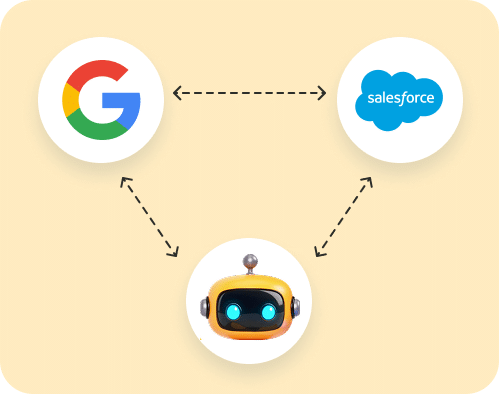
Noca already connects to monday.com. Turn on the Noca MCP Server and that connection becomes available in ChatGPT, Claude, Grok and any MCP-compatible assistant.
Changes run through Noca flows you publish, so every update to monday.com follows your rules, uses your own credentials and is logged.

What You Can Do With
monday.com Through MCP
Read monday.com Data Through Flows
Data-source flows read monday.com records such as boards, items and updates and return them to the assistant.
Run monday.com Workflows
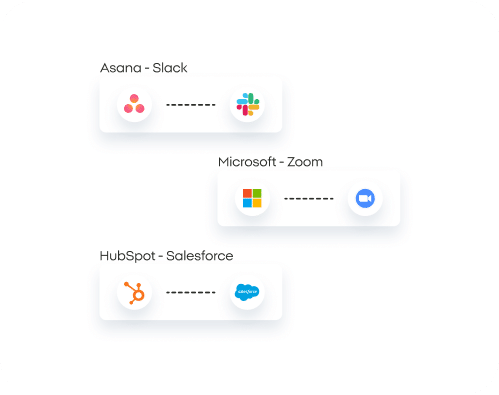
run_flow starts published flows that create and update monday.com records, together with steps in 60+ other systems.
Generate Documents From monday.com
Fill your Word and PDF templates with monday.com data and send them for signature.
Build monday.com Automations in the Chat
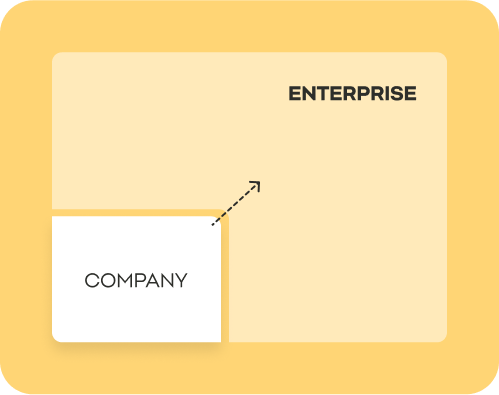
With Builder permissions, the assistant can create flows with monday.com steps, choose the connection and test them.
Your Credentials, Your Rules
Noca uses your own monday.com connection. Turn on only the permission groups you need.
Approvals and Logs
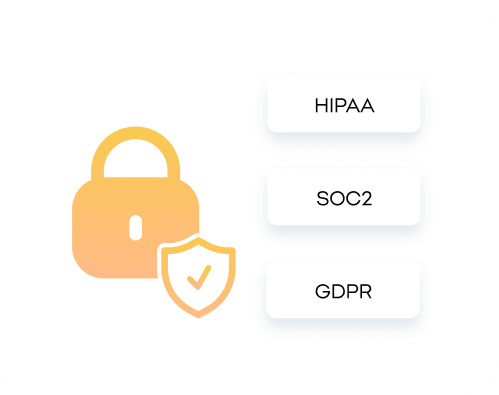
Set each tool to Always allow, Needs approval or Blocked, and review every run in Noca logs.
Example: monday.com From Your AI Assistant
Ask: “Create a project board item for the Acme onboarding and send them the kickoff form.” Noca runs your onboarding flow: it creates the item in monday.com, sends the form and updates the item when the form comes back.
monday.com Processes You Can
Run From the Chat
Teams use the Noca MCP Server to work with monday.com without switching screens.
Items from requests.
Create monday.com items from forms and emails automatically.
Deal handoff.
Open delivery projects when a deal closes in your CRM.
Status updates.
Update items when documents are signed or orders ship.
Onboarding boards.
Create onboarding items with documents and tasks for new hires.
Status questions.
Ask for project status and get answers from your boards through a flow.
Bring monday.com Into ChatGPT, Claude and Grok
Frequently Asked Questions

What is a monday.com MCP server?
It lets AI assistants such as ChatGPT, Claude and Grok work with monday.com through the Model Context Protocol. With Noca, the MCP server also runs your business processes around monday.com, not just single API calls.
How do I connect monday.com to ChatGPT or Claude?
Connect monday.com in Noca, turn on the Noca MCP Server, copy its private URL and add it as a custom connector or MCP server in your assistant.
Can the assistant read monday.com data?
Yes. Noca flows connected to monday.com return monday.com data to the assistant when it runs them.
Can the assistant update monday.com?
Yes, when the Data write group is on. Updates run through your published Noca flows, so they follow the same rules as any other run.
Can I generate documents from monday.com data?
Yes. Document flows fill your Word or PDF templates with monday.com data and can send them for e-signature.
Can documents be attached to monday.com items?
Yes. Flows can generate documents and attach them or their links to items.
Is it secure to connect an AI assistant to my business systems?
Noca gives assistants only the permission groups you turn on (Builder, Data read, Data write, Admin), you can set every tool to Always allow, Needs approval or Blocked, and every action runs under the TRAPS framework: Trusted, Responsible, Auditable, Private and Secure.
Is there a free plan?
Yes. Noca has a free plan, so you can enable the MCP Server and try it with your own assistant before upgrading.
Which assistants are supported?
ChatGPT, Claude, Grok and any MCP-compatible assistant.
Do I need developers?
No. The monday.com connection, the MCP Server and the flows are set up in Noca without code.