

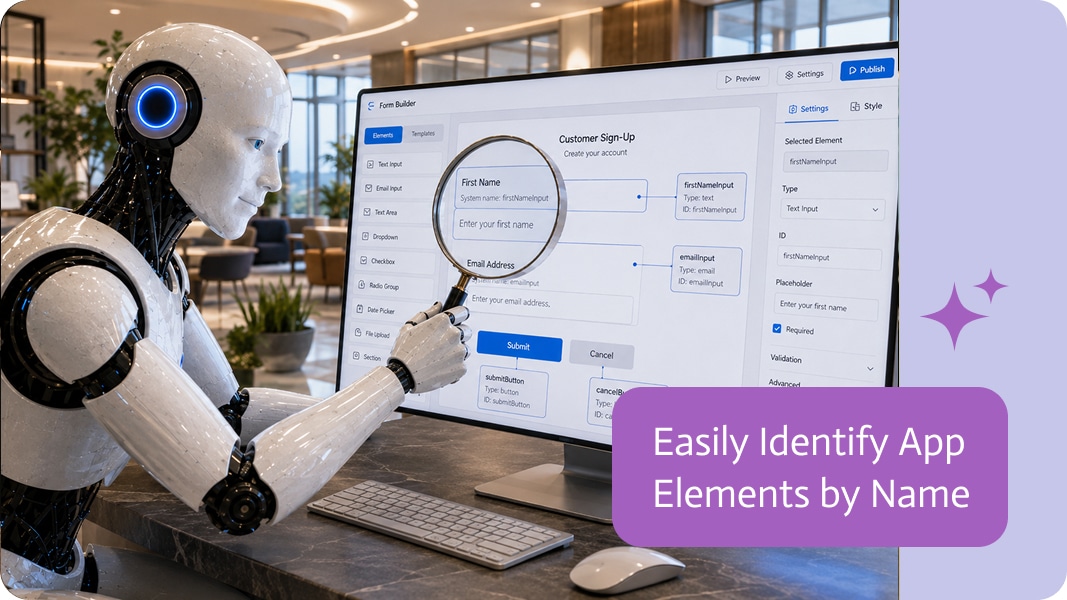
Easily Identify App Elements by Name
Connecting app elements to data and actions can become confusing when several fields or buttons look similar.
A form may contain multiple inputs, several “Save” buttons, or elements with nearly identical labels. When setting up data mapping or UI logic, it is not always obvious which element should be selected.
Displaying the exact system name directly on each canvas element makes this much easier.
Match Visual Elements to System Names
The text users see on an element is not always the same as its internal name.
For example, a field labeled “Email Address” may have a system name such as:
| customerEmailInput
Seeing this name directly on the canvas makes it easy to find the same element when configuring data mappings, events, or interface logic.
Faster and More Accurate Mapping
Clear element names help when connecting:
- Form fields to stored data
- Buttons to actions
- Dropdowns to conditional logic
- Data sources to text or table elements
- User interactions to events
Instead of guessing between Input_12 and Input_13, you can immediately identify the correct element.
Easier Troubleshooting
Visible system names also make it easier to check whether the correct element is connected.
You can compare the name shown on the canvas with the name selected in your mapping or event configuration. If they do not match, the problem is easy to spot.
It is a small detail that saves time, prevents mistakes, and makes working with app elements much more straightforward.
Because data mapping should involve logic—not detective work.

Sales teams face growing pressure to manage vast amounts of data, customer interactions, and administrative tasks. AI-powered sales agents act as virtual assistants, automating workflows,…
AI is Transforming the Music Industry The music industry has always taken the extra step when it comes to embracing new technologies. AI Music Video…
Unlocking the Potential of AI Text Generation Creating perfect content regularly is not an easy task, especially when the deadlines are close and expectations are…
With everything becoming automated and voice-driven, one of the mostpopular AI tools is Text-to-Speech (TTS). AI Text to Speech is making communications more accessible and…