


Build and Manage Apps and Workflows from AI Chat with MCP
AI assistants have become a natural place to get work done. People use them to write, research, analyze data, and plan projects, often with the assistant open all day.
Business tools, however, usually live somewhere else. Building an app, updating a workflow, or running an integration typically means leaving the chat, opening another platform, finding the right screen, and making changes by hand.
The Model Context Protocol (MCP) closes that gap. When a business platform is available as an MCP server, AI assistants such as Claude, ChatGPT, and Gemini can work with it directly. You can create, update, and run apps, workflows, bots, and integrations simply by describing what you need in the chat.
What Is MCP?
The Model Context Protocol is an open standard that lets AI assistants connect to external tools and data.
An MCP server exposes a set of capabilities, such as creating records, running processes, or reading information. An AI assistant that supports MCP can discover these capabilities and use them when they’re relevant to the user’s request.
Instead of building a separate connection for every AI assistant, a platform can offer one MCP server that works with any assistant that supports the protocol.
From Chat to Action
Connecting an AI assistant to a business platform through MCP changes what the assistant can do.
Without MCP, an assistant can explain how to build a workflow or suggest what an app should include. With MCP, it can actually do the work: create the app, set up the workflow, run it, and report back on the results.
For example, a user might write:
“Create a customer feedback form with a rating, comments, and an email field, and send each response to our CRM.”
The assistant can use the platform’s MCP server to build the form, set up the workflow that sends responses to the CRM, and share a link for the user to preview, all within the same conversation.
What You Can Do Through AI Chat
When business tools are available through MCP, many common tasks can be handled from the chat.
For example, users can:
- Create new apps and forms by describing them
- Update existing apps, such as adding fields or changing layouts
- Build and edit automated workflows
- Run workflows and check their results
- Create and refine chatbots
- Set up and test integrations with other systems
- Ask questions about existing apps, workflows, and runs
Because the assistant keeps the context of the conversation, users can make changes step by step, such as “now add a phone number field” or “send a notification to the sales team as well”, without starting over.
Why Work This Way?
Managing apps and workflows from an AI assistant offers several advantages:
- Work happens where people already spend their time
- No need to switch between tools or learn new screens for simple changes
- Plain-language requests replace manual configuration
- Changes can be made quickly and refined through conversation
- Non-technical users can build and update processes more easily
- One assistant can work with several connected tools in the same conversation
For example, an operations manager could ask an assistant to check why a workflow failed, fix the problem, and run it again, without leaving the chat.
Traditional Interface vs. AI Chat with MCP
| Traditional interface | AI chat with MCP | |
|---|---|---|
| How you work | Navigate screens and settings | Describe what you need |
| Where you work | Inside the platform | Inside your AI assistant |
| Learning curve | Need to know where everything is | Plain-language requests |
| Making changes | Manual, step by step | Requested and applied by the assistant |
| Combining tools | Switch between platforms | Several tools in one conversation |
The traditional interface is still useful, especially for detailed design work or reviewing complex setups. MCP adds another way to work, one that’s often faster for everyday tasks.
Keeping Control and Security
Giving an AI assistant the ability to take action requires the right safeguards.
A few practices help keep MCP connections secure:
- Connect only to trusted MCP servers
- Use authentication so the assistant acts with the user’s own permissions
- Review changes before they’re applied to important apps or workflows
- Ask for confirmation before actions that affect live data or send messages
- Keep track of what changes were made and by whom
With these controls in place, users get the speed of working through AI chat without losing visibility or control.
Getting Started
Using a business platform through MCP usually involves a few simple steps:
- Add the platform’s MCP server to your AI assistant’s connector or tool settings.
- Sign in to the platform to allow the assistant to work on your behalf.
- Start a conversation and describe what you’d like to create, update, or run.
- Review the results and refine them through follow-up requests.
Bringing Business Tools into the Conversation
AI assistants are becoming the starting point for more and more work. MCP makes it possible for them to do more than suggest. They can build, update, and run the apps and workflows that businesses rely on.
Because the fastest way to get something done is often just to ask for it.

AI is Transforming the Music Industry The music industry has always taken the extra step when it comes to embracing new technologies. AI Music Video…
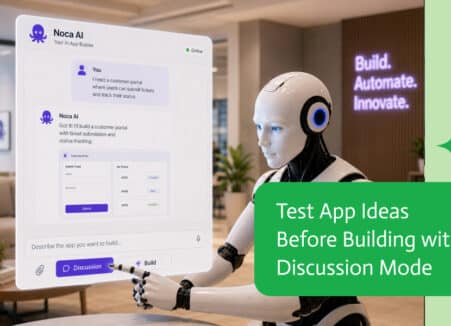
Use Claude to build an approval app: request forms, routing rules, approver inbox, Slack or Teams notifications and ERP updates.
Introduction Hello, finance professionals! Are you overwhelmed by the multitude of tools you use daily? Imagine having a single platform that seamlessly integrates them all,…